Getting started
How to get help in IntentGrid
Hover a button to see what it does, hide notes you no longer need, turn on Help mode, or ask the help bot in the corner.
There are four ways to get help. You never have to leave the page you are on.
Hover or tap a button
Rest your mouse on a button to see a short note. The note says what the button does. It also says if the button will email or text your client, change a price, or send a bill.
On a phone or tablet, tap the small (i) next to the button.
Click Learn more in the note to open the full guide.
Stop a note from showing
Once you know what a button does, click Got it, don't show again in its note. That note stops showing in this browser. Other buttons keep their notes.
To bring hidden notes back, turn on Help mode and click Show hidden tips again at the bottom of the screen. The ? markers in Help mode always work, even for hidden notes.
Turn on Help mode
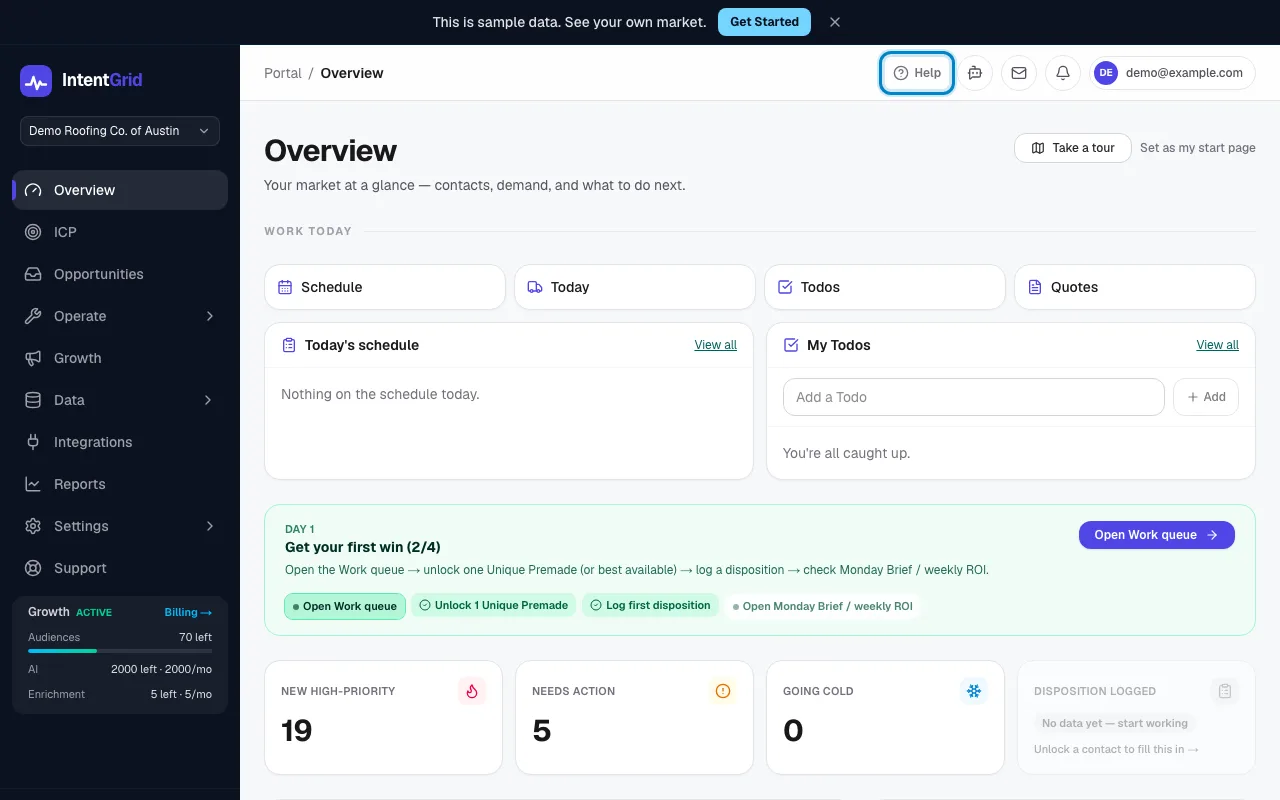
Click Help at the top of any Portal page. A blue ? shows up on every button that has a guide. Click a ? to read about that button. Click Help on to turn it off.
Read a guide
Guides open in a window over your page. Your work stays where you left it. Press Esc, click the X, or click outside the window to go back.
Ask the help bot
Click the round button in the bottom right corner. Type your question in your own words, like "How do I send a quote?" The bot answers from these guides and links you to the right page.
If the bot is not sure, it says so and offers to send your question to our support team. Asking the help bot is free.
Last checked 2026-10-28